Showing posts with label UCM. Show all posts

Monday, October 30, 2017

How to configure secure RIDC port in WebCenter Content?

An SSL Incoming Provider is leveraged and instantiated to create an SSL server socket to which Intradoc clients (WCC UI, WCP etc) can connect, and whereby traffic is encrypted. The provider can be configured with or without requiring client authentication (the WCC UI Managed Server is a client of Content Server). When client authentication is not required, the JAVA RIDC client making the connection to the SSL server socket (Intradoc secure-socket port) does not need to present a valid certificate. This mode is not very different from a normal, non-SSL Intradoc connection. The main difference, however, is that traffic is encrypted and cannot be viewed by packet capture, and so on, in the clear. Client authentication means that the client must supply a valid SSL certificate signed by an authority that is in the server's trust store. 
Pre-requisites
1.       Oracle WebCenter Content (WCC) 12.2.1 is installed
2.       WCC domain is created and all servers are running.
3.       RIDC non-SSL port is configured and IDC is running on 4444.
Steps:
1.       Create the SSL incoming socket provider of sslincoming provider type


Provider Name:
sslkeepaliveincomingprovider
Provider Description:
For RIDC over SSL


Provider Type:
sslincoming
Provider Class:
idc.provider.ssl.SSLSocketIncomingProvider
Provider Connection:
idc.provider.KeepaliveSocketIncomingConnection 
Server Thread Class:
idc.server.KeepaliveIdcServerThread
Server Port:
4445


Request Client Authentication:
No
Require Client Authentication:
No


Keystore File Path:
/oracle/app/keystores/wcc_keystore.jks
Alias:
Dev1WCC
Truststore File Path:
/oracle/app/keystore/wcc_trust.jks


Note:
a. Please note that RIDC non-secure port and RIDC secure port should be different and must have required firewalls rules.
b. If you want client authentication then check the “Require Client Authentication” from the SSL incoming provider. Then you must configure keystore for your client.

2.       Restart the WCC managed server. Make sure that sslincoming provider is in good state.
Once you finished with above steps, IDC server is configured for RIDC secure (SSL) port and you can use idcs protocol for any client.
Verification:
1.       Check SSL is configured
openssl s_client -connect wcchost1:4445

CONNECTED(00000003)
depth=2 C = AU, ST = NSW, L = Sydney, O = myCompany, OU = Digital Certificates Security Services, CN = Imran Mirza
verify error:num=19:self signed certificate in certificate chain
verify return:0
---
Certificate chain
0 s:/C=AU/ST=New South Wales/L=Sydney/O= O = myCompany, OU = Digital Certificates Security Services, CN = Imran Mirza

2.       Check the IDC Service PING_SERVER
You will see output like:
<?hda version="12.2.1.2.0-2017-07-05 09:25:44Z-r155055" jcharset="UTF8" encoding="utf-8"?>
@Properties LocalData
IdcService=PING_SERVER
IsAllowAnonymous=1
IsJava=1
StatusMessage=You are logged in as ‘weblogic’.

3.       You can configure idcs connection url in any RIDC client for example WCC UI app:

updateRIDCConnection('Oracle WebCenter Content – Web UI',
'WccAdfServerConnection',connUrl='idcs://wcchost1:4445',
credUsername='sysadmin')

Friday, June 12, 2015

Scaling support for different Oracle Fusion Middleware products


Product
Scale-up
Scale-out
Details
Oracle WebCenter Portal
Yes
Yes
Scale-up is only supported in case of Spaces or custom portal or Portlet managed server.
Oracle WebCenter Content: Content Server
No
Yes

Oracle WebCenter Content: Inbound Refinery
No
Yes

Oracle WebCenter Content: Imaging
Yes
Yes

Oracle WebCenter Content: Capture
Yes
Yes

Oracle SOA/BPM Suite
Yes
Yes
Scale-up is not supported in case of BAM server.
Oracle Service Bus
Yes
Yes


Scale-up: Adding managed server in Existing Nodes
Scale-out: Adding managed servers New Nodes

Reference:


Friday, May 31, 2013

UCM 11g Fails to Start due to csDbFailedToGetNonEmptyTableList Error

After WebCenter 11.1.1.7.0 (PS6) installation with MS. SQL Server 2008 R2, I created one domain includes WebCenter Portal and WebCenter Content components, everything went good. When I tried to start UCM server, it fails to start with following exceptions:-

 <31/05/2013 12:16:48 PM NZST> <Error> <ServletContext-> <BEA-000000> <Could not start server of type 'server' at default relative web root URL 'cs'.javax.servlet.ServletException: Could not start up IDC server deployment.Caused By: java.io.IOException: UCM Server failed to initialize inside its servlet environment.Caused By: intradoc.data.DataException: !csDbFailedToGetNonEmtpyTableList,WebCenter,DEV_OCSS

Cause

I have configured case-sensitive database for WebCenter. In the Weblogic CSDS data source configured for MS. SQL Server, the database name case doesn't match the case on the database on SQL Server.

Such as like the database name in the data source is all lower case but the actual database name in SQL server is all upper-case even i have given same upper-case during RCU schema creation and domain creation time.

Its looking me the bug with SQL Server installation with WebCenter Content. 

Solution

In the CSDS data source, set the database name so that it exactly matches the database name in SQL Server:

1. Go to WLS Admin console, in the Domain Structure pane, expand Services

2. Select Data Sources

3. In the Summary of JDBC Data Sources pane select the CSDS link

4. In the Settings for CSDS pane select the Connection Pool tab

5. In the Properties field change the databaseName to match the case of the database on SQL Sever

Example:
Change:

databaseName=WebCenter (in my case, its change in this way)

To:

databaseName=WEBCENTER
6. Click the Save button8. Restart the Admin Server and the UCM Managed Server.

Note: As a best practice, do this steps for all data-sources configured for MS. SQL Server.

Sunday, July 29, 2012

How to resolve 8dot3 semantics issue when adding content from Desktop Integration Suite (DIS) or UCM console into Content Server


 On Content server browser window, you will get following alert:-

"The weblayout directory is on a filesystem with 8dot3 semantics. Legacy 16-bit 8dot3 filenames conflict with revision labels and will cause file loss. Disable 8dot3 semantics by running Installer DisableNtfs8dot3 and then restarting Windows."


When you try to add contents to DIS window or trying adding contents from UCM taskflows of WebCenter Spaces , you will get following error in case of DIS:-

And you will get following error in case of UCM taskflows (like document explorer, folder viewer etc) from WebCenter Spaces:-

You cannot upload document. Permission denied.

Quick Solution

 And you will not able to add contents. To resolve this issue, go to following registry location:-
HKEY_LOCAL_MACHINE/SYSTEM/CurrentControlSet/Control/FileSystem


Then, change the value  of the NtfsDisable8dot3NameCreation key to 1. You must restart Windows for the new setting to take effect.

Please note that the solution has been tested on Windows7 only.

Monday, April 18, 2011

How to Install and Configure Oracle ECM 11G R1?

This post covers the quick installation overview of the Oracle Universal Content Management (Oracle UCM) and Oracle Inbound Refinery (Oracle IBR) product of Oracle Enterprise Content Management (ECM) Suite 11G R1(11.1.1.4.0). This guide does not contain steps of other ECM products like Oracle IRM, Oracle I/PM and Oracle URM.


Oracle UCM is a content server that store and manage several different types of contents (Web pages, PDF, Images, Videos etc).

Oracle IBR is a conversion server that manages file conversions for electronic assets such as documents, digital images, and motion videos. It also provides thumbnail functionality for documents and images and storyboarding for videos. You can use Oracle IBR to convert content items stored in Oracle Content Server.

Pre-requisites                                                                          
  1. Oracle Database 10g (10.2.0.4 or later) OR 11G (11.1.0.7.0 or later) (Required before RCU Schema Creation)
  2. Oracle Weblogic 11G R1 (Required before ECM Installation)

Installation Roadmap

Oracle UCM and IBR runs on Oracle Weblogic Server 11G. It is advisable that Oracle UCM and IBR must be installed in the same domain (i.e. WebCenter domain) so that domain related configurations can be utilized.

Installation of UCM and IBR consists of following steps:-

1.     Creation of UCM Schema

2.     Installation of Oracle ECM

3.     Creation of UCM and IBR Domain

4.     Configuration of UCM

5.     Configuration of IBR

Creation of UCM Schema

Run RCU to create the necessary install specific tables / schemas . This will create the schema with which UCM will be connected to DB. Follow the following steps as mentioned in the form of screens.


 In above screen, you can select existing prefix, if you have created schema for WebCenter or SOA or enter a new prefix.


 Enter a password for UCM_OCS Schema.


Installation of Oracle ECM

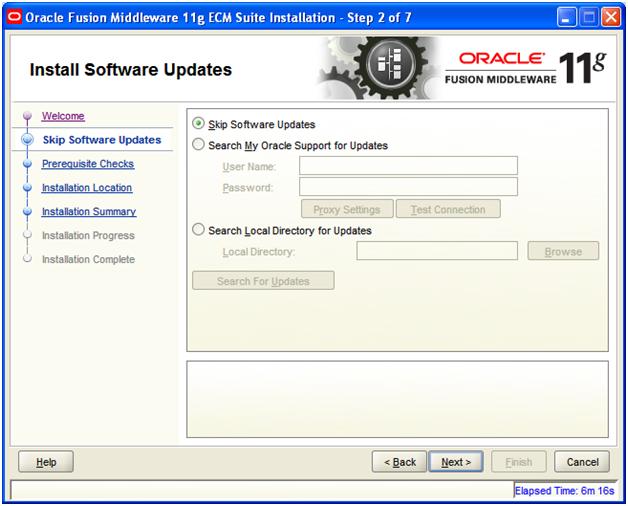
Install ECM 11G release 1 binaries in the respective Weblogic Middleware Home Directory. This will copy all the binaries to the location specified from where the installer picks up to deploy. Follow the following steps:-


 Enter the patch of Weblogic Middleware home directory path you Weblogic created at the time of installation.


 During installation, it require path of disk2. Give path disk2/stage folder.


Creation of UCM & IBR Domain

This step will create a new domain where UCM and IBR applications and required files/libraries will be deployed. Follow the following steps:-


 Click the schema and enter Service, Host name, port, Schema owner (UCM_OCS) and schema password. Enter schema password that you entered at the time of UCM schema step of RCU.
 Make sure you see message “Test Successful”.


Configuration wizard will create following items:-
  1. New domain (ucm_domain)
  2. AdminServer running on port 7001
  3. UCM_Server running on port 16200
  4. IBR_Server running on port 16250

Configuration of Oracle UCM
  1. Start Admin server to have the new deployments initialized.
  2. Start the UCM Managed Server (UCM_Server) using command prompt. Might be you will face JRF and other libraries and classes loading issues. Its better to use command prompt first time using DOMAIN_HOME\bin\startManagedServer.cmd UCM_server.
  3. To test a newly set up Oracle UCM instance, by accessing Oracle Content Server:
            http://HostName:16200/cs


Login with admin user and password that you given at the time of Domain creation.
Perform the following steps for onetime Configuration of Content Server.

Change the Server Instance Name(OracleUCMServer) &  Server Instance Label (Oracle UCM Server).

 Once you completed post-install configuration, a new Menu with name “Oracle Content Server” will be created as shown in following screen:-

Restart the UCM_Server managed Server. Now, you have successfully installed and configured UCM.

Configuration of Oracle IBR
  1. Start the IBR Managed Server (i.e. IBR_server) using command prompt. Might be you will face JRF and other libraries and classes loading issues. Its better to use command prompt first time using DOMAIN_HOME\bin\startManagedServer.cmd IBR_server.
  2. To test a newly set up Oracle IBR instance:-
          http://HostName:16250/ibr


Login with admin user and password that you given at the time of Domain creation

Perform the following steps for onetime Configuration of IBR Server.

Change the Server Instance Name(IBRServer16250) &  Server Instance Label (Oracle IBR Server).

Once you completed post-install configuration, a new Menu with name “Oracle Inbound Refinery” will be created as shown in following screen:-

Restart the IBR_server manage server instance. Restart the UCM_server manage server instance.

Now, IBR can convert files to TIFF web-viewable files and JPEG image thumbnails. Other supported conversion types like PDF conversions, HTM conversion, Image/video asset conversions etc are installed but they are disabled, you can enable these types as well. For detail, how to enable other types, see http://download.oracle.com/docs/cd/E17904_01/doc.1111/e14495/configibr.htm#CIAFADFJ

To send jobs for conversion to Oracle IBR from Content Server, perform following steps:-
  1. Creation of Outgoing Provider: Follow steps as mentioned in http://download.oracle.com/docs/cd/E17904_01/doc.1111/e14495/configibr.htm#CIAGFDHJ
  2. Enabling IBR components on Oracle Content Server instance that use IBR for document conversion. (By default it is enabled) . Enable it using following steps mentioned in installation guide:- http://download.oracle.com/docs/cd/E17904_01/doc.1111/e14495/configibr.htm#CIAFGGFG
  3. Selecting File Formats to be converted by IBR: Use steps mentioned in http://download.oracle.com/docs/cd/E17904_01/doc.1111/e14495/configibr.htm#CIAEFBAE


In next post, I will explain how to integrate and configure UCM and IBR for Oracle WebCenter 11G.